 PiHead
 1. Requirements
- A computer with Windows 10 or Windows 11 (64-bit)
- A free USB port. We recommend plugging the device directly into the computer rather than into a hub.
- A headset with a headband
- A game that supports head tracking via TrackIR or FreeTrack (list)
2. Mounting the device
Place the device on the headband of your headset so that it sits on top of your head. Route the cable to the back or side so it doesn't restrict your movement.
- It must sit firmly: the device should not move on the headset when you turn your head. A loose mount causes jitter and drift.
- Orientation doesn't matter: the setup wizard detects automatically which way the device is facing.
- If you move the device later, run the wizard again.
3. Installing the app
- Download the installer from the download page and run it.
- If a “Windows protected your PC” warning appears, click More info → Run anyway.
- Continue with “Next”. The installer doesn't require administrator rights and takes about a minute.
- When it's done, the app opens. Plug in the device; within a few seconds the top bar shows Connected.
The app is available in English and Turkish. It follows your Windows language on first start; you can change it under Application → Dil · Language.
4. Setup wizard
The wizard opens by itself the first time the device connects. You can also open it later with the Setup Wizard button in the right panel. It takes about a minute:
- Place the device on a flat surface and don't touch it. The sensor is zeroed.
- Put on the headset and look straight at the screen, the way you do while playing. Hold still.
- Tilt your head forward to look at your keyboard (about 30°) and hold. Don't tilt your head sideways.
- Look straight at the screen again and hold.
That's it. The app calculates how the device sits on your headset and centers the view. Try turning your head left-right and up-down; the view on screen should follow your head.
5. Main screen
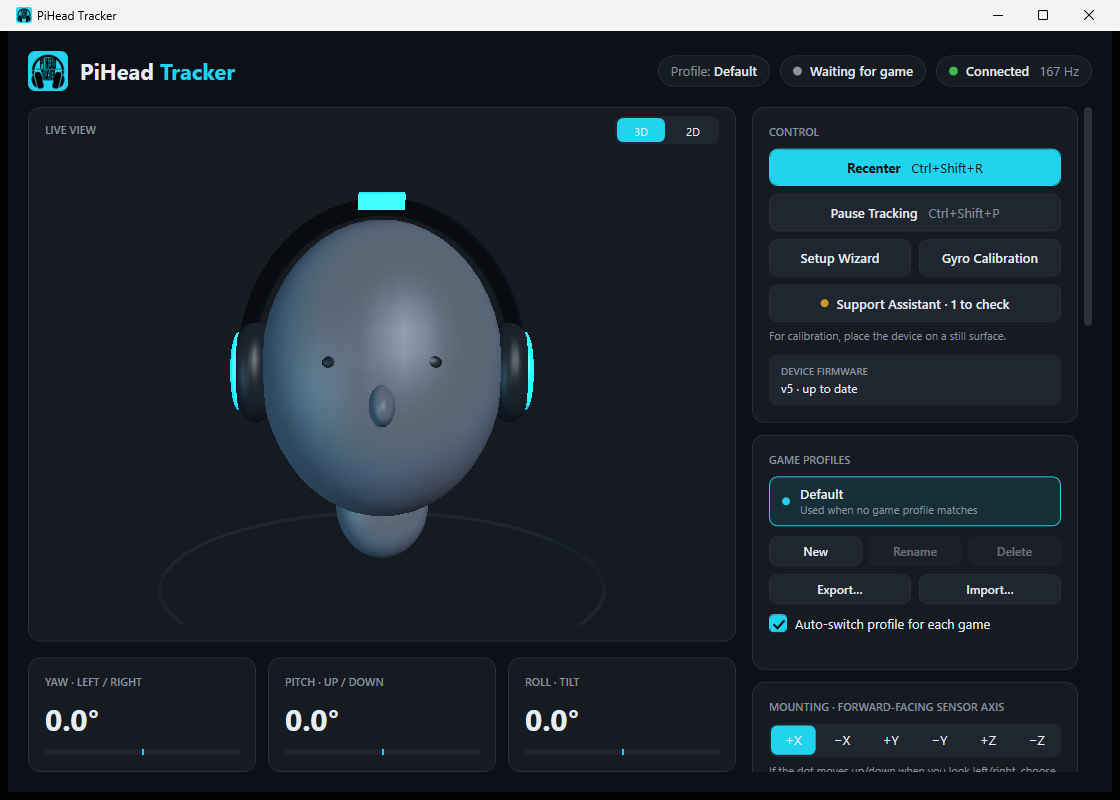
| Area | What it does |
|---|---|
| Top-right indicators | Name of the connected game, device status and data rate (Hz). A yellow notice appears when tracking is paused. |
| Live view | 3D: a head model wearing a headset turns with your head. 2D: a dot shows where you look and a line shows the tilt. Switch with the button in the top-right corner. |
| Yaw / Pitch / Roll | Turning left-right, looking up-down and tilting sideways. |
| Control | Recenter, pause, setup wizard, gyro calibration and the Support Assistant. |
| Mounting | Choose the forward-facing sensor axis manually without the wizard (advanced). |
| Axes · Sensitivity | Sensitivity, invert and response curves for each axis. |
| Auto recenter | Strength of the correction that removes slowly accumulating drift. |
| In-game | Recenter when a game connects, sound feedback and the neck model. |
6. Recentering and calibration
Recentering
While looking straight at the screen, press Recenter or the shortcut (Ctrl+Shift+R). Your current view direction becomes “straight ahead”. Do the same whenever the view drifts a little during play.
Gyro calibration
The app learns sensor drift by itself while you use it. If you still notice clear drift, put the device on a flat desk, click Gyro Calibration and don't touch it for 10 seconds.
Auto recenter
During long sessions the view may drift very slowly to one side. Auto recenter gently pulls the center towards your view direction while you look near the center (within ±25°), so accumulated drift disappears without you noticing. Glances to the side (mirrors, over the shoulder) are not affected.
| Level | When to use |
|---|---|
| Off | The center only changes when you recenter. |
| Light (recommended) | Drift fades out over a few minutes; you won't notice it. |
| Medium | Drift fades out in about a minute. Choose it if drift is noticeable. |
| Strong | Drift fades out within seconds; looking slightly aside for long also shifts the center. |
Tip
Leaving the device on the desk for a minute before a session helps the app learn the drift best.
7. Sensitivity and smoothing
- Sensitivity (0.2× – 4×): how much your head movement is multiplied in the game. With 2.0×, turning your head 45° turns 90° in the game.
- Invert: tick it if an axis works the wrong way. Usually not needed after the wizard.
- Smoothing: higher values reduce jitter but add a tiny delay. 40–60% suits most people.
All settings are saved automatically.
8. Response curves
For finer control than sensitivity, click Response Curves… in the right panel. The horizontal axis is your head angle, the vertical axis is the angle sent to the game.
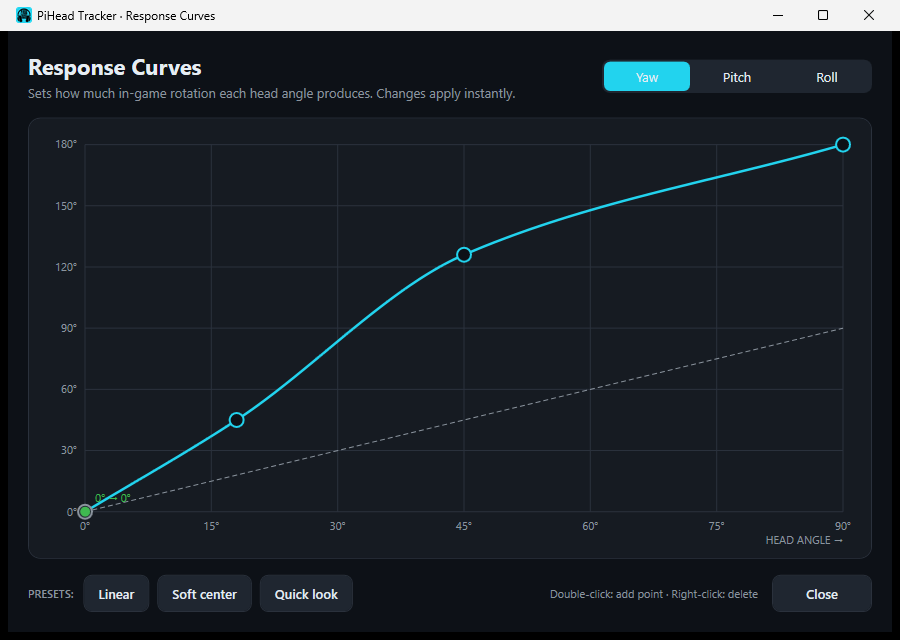
- Drag points with the mouse; double-click an empty spot to add a point, right-click a point to delete it.
- The green dot shows your current head position on the curve.
- Linear: the game turns exactly as much as your head.
- Soft center: small movements near the center are damped and return to normal at the edges. Good against jitter.
- Quick look: turn your head a little to look a lot in the game. Ideal for mirrors and looking behind.
Game profiles
You can use separate sensitivity, smoothing and response curves for each game. In the Game Profiles section of the right panel:
- The Default profile is used for every game without its own profile.
- While a game is running, press the “Create a new profile for …” button: a profile for that game is created. Change the settings; changes are saved automatically.
- The next time that game starts, its profile is selected automatically, and the app returns to Default when the game closes. You can turn this off with “Auto-switch profile for each game”.
- With New you can also create profiles not linked to a game and select them manually.
- Export… saves the selected profile to a file; with Import… you can move it to another computer or try a friend's settings.
9. Shortcuts
Shortcuts also work while a game is running.
| Action | Default |
|---|---|
| Recenter | Ctrl+Shift+R |
| Pause / resume tracking | Ctrl+Shift+P |
To change one, click its button in the Shortcuts section and press the new key combination. Esc cancels, Delete removes the shortcut. Letters and digits must be combined with Ctrl, Alt or Shift; F1–F12 and numpad keys can be used alone.
Joystick, HOTAS and wheel buttons
You can also assign recenter and pause to a button on your controller, so you don't have to reach for the keyboard while playing. In the Shortcuts section, click the button in the Controller / HOTAS column and press the button you want on your controller. Joysticks, HOTAS, wheels, gamepads and hat directions are supported. The assignment is kept even if the controller is plugged into another USB port.
Pausing stops tracking temporarily: the in-game view is held straight ahead and you can move your head freely (e.g. to look at your phone).
10. Using it in games
- Start PiHead Tracker first, then start the game.
- In the game's settings (usually under Controls or Camera), enable TrackIR, FreeTrack or head tracking. PiHead Tracker supports both protocols.
- The game's name appears at the top of the app. Look straight at the screen in the game and recenter.
In-game options
In the In-game section of the right panel:
- Recenter when a game connects: the view is centered the moment a game connects to head tracking (on by default).
- Sound feedback: plays a short sound on recenter, pause/resume and when the device connects or disconnects, so you know what happened without looking at the app.
- Neck model (experimental): in real life your head rotates around your neck, so your eyes shift slightly when you turn. This option sends that small movement to the game too; in games that support position (e.g. Euro Truck Simulator 2, MSFS) your head naturally shifts towards where you look. If the movement goes the wrong way, tick Invert position direction.
Important
Only one tracking program should run at a time. Close opentrack or TrackIR software if they are running. When PiHead Tracker closes, it restores those programs' settings.
11. System tray, language and starting with Windows
When you close the window, the app keeps running in the system tray next to the clock; head tracking and shortcuts continue. Right-click the tray icon to recenter, pause or exit completely.
In the Application section of the right panel you can change “Keep running in the tray when closed” and “Start with Windows”.
The colored dot on the tray icon shows the status: green = connected, yellow = paused, gray = searching for device, red = device could not be verified. If the device disconnects while the window is closed, a notification appears.
The User Guide button opens this guide as a PDF (no internet needed). Reset Settings… returns the sensitivity, invert, smoothing and curve settings of the selected profile to defaults; mounting and shortcuts are kept.
Language: the app is available in English and Turkish. It follows your Windows language on first start; change it with the Dil · Language selector in the Application section (the app reopens within a few seconds).
12. Support Assistant
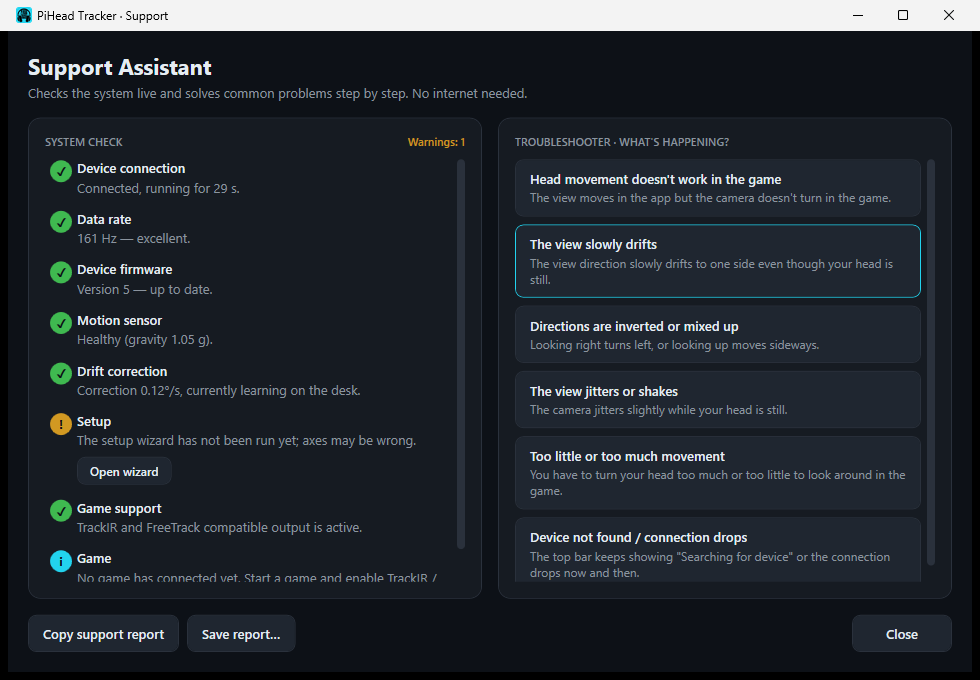
The Support Assistant in the Control section checks the connection, data rate, sensor, drift correction, setup, conflicting programs and the game live. The colored dot next to its button shows the overall status. Pick your situation in the troubleshooter on the right; steps and one-click fixes appear.
When writing to us, paste the report created with Copy support report into your message.
13. Updating and uninstalling
App update: when a new version is out, an “Update: v…” button appears in the top bar. Click it and the app downloads, verifies and installs the new version, then reopens; your settings are kept. You can also install it manually from the download page. You can turn off automatic checking in the Application section.
Device firmware update: if an “Update” button appears in the Device firmware row of the Control section, click it. It takes about 10 seconds; don't unplug the device meanwhile. If anything goes wrong, the device returns to the previous version by itself.
Uninstalling: Windows Settings → Apps → PiHead Tracker → Uninstall. Your settings stay on the computer; if you reinstall, your calibration is not lost.